For finance teams committed to improving their management reporting through Power BI, one of the most impactful yet underutilized applications is the ability to preview journal entries before posting. This capability addresses a critical gap in the month-end close process: the inability to visualize the impact of proposed adjustments without committing them to the accounting system.
This article explores the technical implementation of a Power BI solution that enables real-time preview of journal entries, delivering improvements in speed, consistency, and accuracy for financial reporting teams.
The technical architecture
The solution leverages a layered approach that separates live accounting data from proposed adjustments while maintaining the ability to present them in a unified view. Understanding this architecture is key to successful implementation.
Bottom layer - a financials semantic model
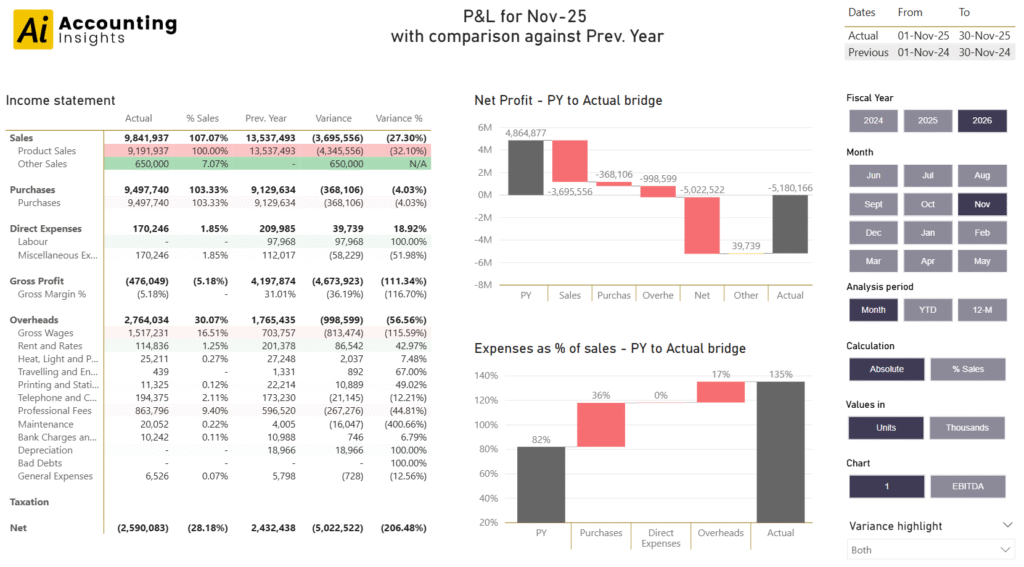
At the foundation level, you need an existing Power BI semantic model (formerly known as a data model) that contains your core financial data. A report like this Income Statement and Balance Sheet template would have a suitable semantic model. What is needed is a model that would support the presentation of your Income Statement and Balance Sheet, based on the current data in your accounting software.
Middle layer - a spreadsheet of proposed journals
For the journal entry source, create an Excel template that mirrors your accounting software’s journal import format. This typically includes columns for date, account code, debit, credit, description, and any additional dimensions like cost center or project code. By using your software’s native format, you eliminate re-keying when you’re ready to post.
Top layer - a mixed mode Power BI desktop report
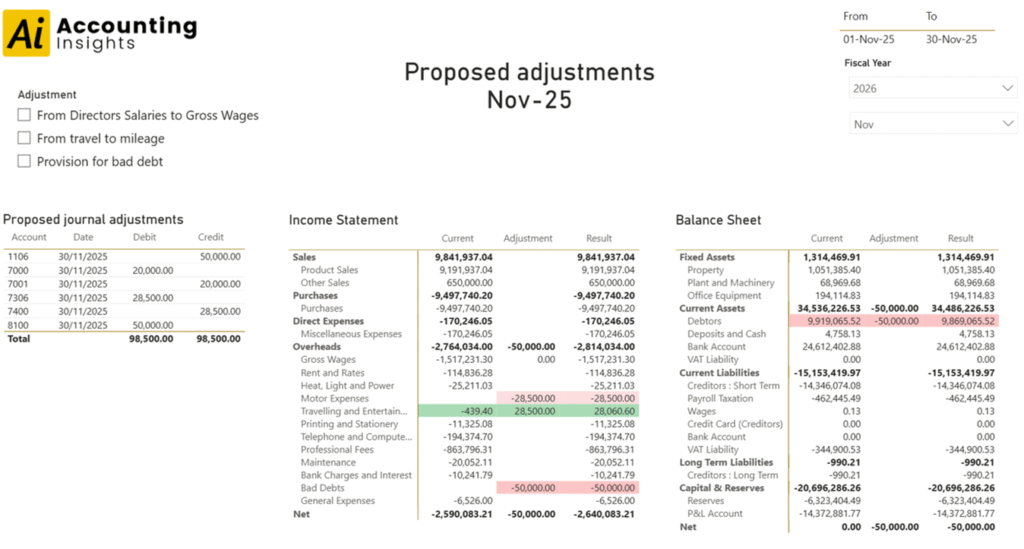
At the top layer is a mixed-mode Power BI Desktop report like in the image below. The data sources for this report are the semantic model – to display the current position, and the Excel workbook of proposed journal adjustments. Ideally, like in the image, this report allows for side-by side comparison of the proposed adjustments, and their impact on both the income statement and the balance sheet.
Key points to note
Using Power BI Desktop in mixed storage mode like this means that each refresh after updating your proposed journals only takes a few seconds
Data Model Relationships: In your report, you’ll need to establish relationships between your journal entries and your chart of accounts structure. The account code typically serves as the key relationship field. If your journals include dimensional data (departments, projects, etc.), ensure these also have appropriate relationships established.
In Power Query, you will need to add the transformations to convert the spreadsheet of journals into a small fact table suitable for use in the model.
Matrix columns for the Income Statement and Balance Sheet are added into the report to support the three columns “Current”, “Adjustment”, and “Result”
DAX Measures for Calculations: You will need to create new measures in the report to support the calculations for the current, adjustment and result values for the Income Statement and the Balance Sheet.
A slicer or filter panel allowing users to toggle between viewing all journals or isolating specific entries. This is crucial for understanding individual journal impacts versus cumulative effects.